
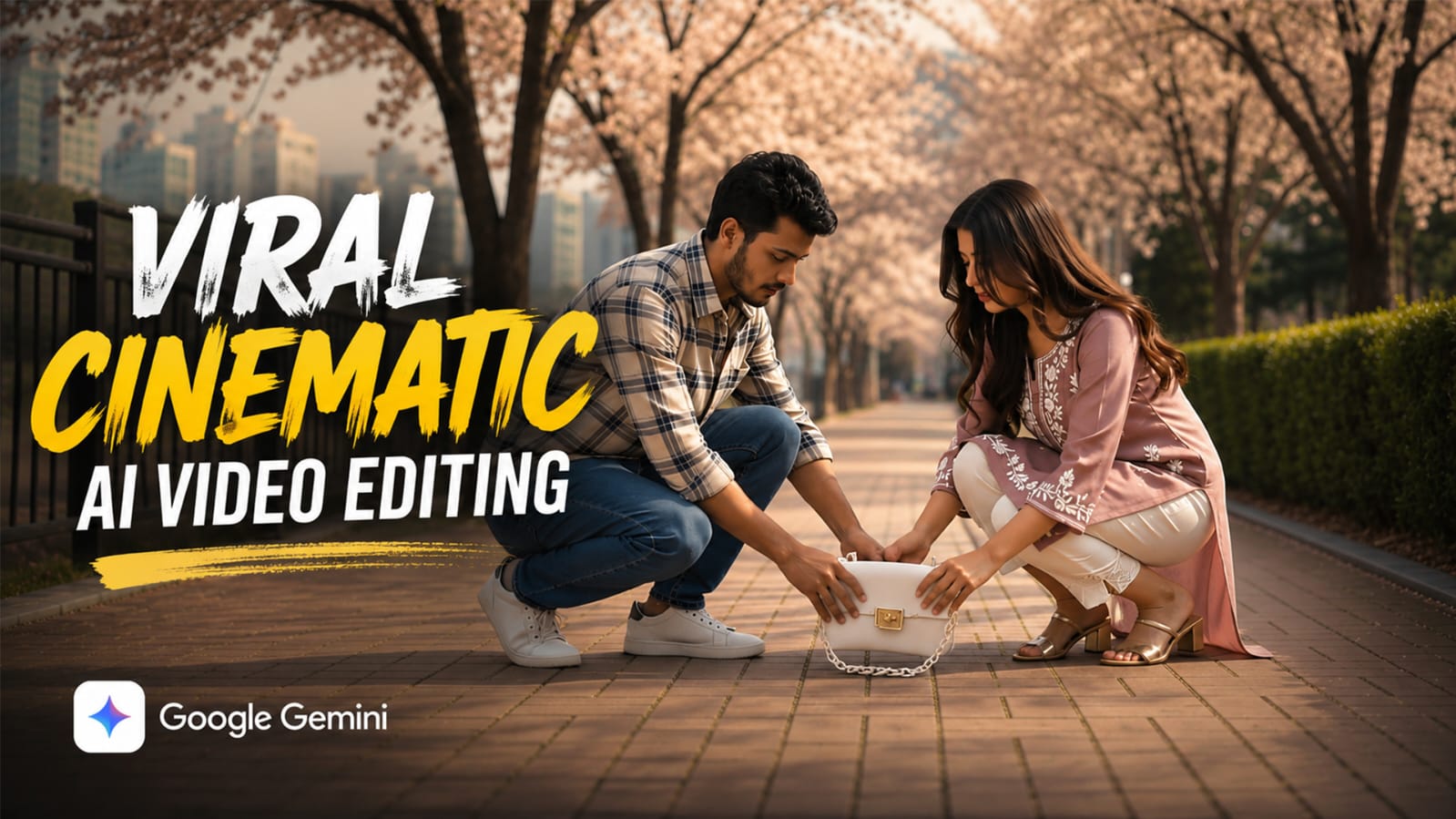
If your Instagram or YouTube feed is full of dreamy couple videos walking under pink cherry blossoms, you are looking at one of the biggest viral cinematic AI video editing trends right now. This trend turns one simple selfie into a full romantic short film complete with a cinematic collision scene, soft eye contact, and a Korean spring street covered in falling petals
The best part? You only need one photo of yourself. The AI creates the second character, the location, and the whole story around you. This is why the trend is spreading so fast on Reels and Shorts it feels personal, but it takes almost no effort to make.
At RonyTica, we test every trending AI prompt before sharing it, so you get a version that actually works. In this guide, RonyTica breaks down the exact video prompt, the AI tool you need, and step-by-step instructions to create your own cherry blossom couple video. Many readers search us as Rony Tica, so if that is how you found this page, welcome you are in the right place.
Which AI Tool Supports This Viral Cinematic AI Video Editing
This cinematic video prompt works best with Google Veo3, which you can access in two ways :
- Gemini App (Paid Subscription): If you already have a Gemini paid plan (Google AI Pro or Ultra), you get full access to Veo3 video generation with better quality, longer generation limits, and priority processing. This is the smoothest way to run this prompt.
- Google Flow (Free Option): If you do not have a paid subscription, you can log in to Google Flow with your Google account. It gives a small number of free credits, which is enough to generate this 15-second cherry blossom video once or twice. This is the best free route for beginners.
Both platforms understand detailed cinematic prompts like this one, including scene-by-scene camera direction, character lock instructions, and lighting details.
What You Need (Photo Requirement)
This is a Type B direct video prompt, which means you do not need to create a separate AI image first. You only need:
- One clear selfie or portrait photo of yourself front-facing, good lighting, face fully visible
- No group photo or couple photo needed the AI generates the second character (your virtual co-star) on its own based on the prompt
- Photo should not have sunglasses, heavy filters, or a covered face, as this affects how well your face is preserved in the final video
How To Use
- Open Gemini app (if you have a paid plan) or go to Google Google Flow (if using the free option) and log in with your Google account.
- Select the Veo3 video generation option.
- Upload your selfie as the reference photo.
- Copy the full video prompt (given below) and paste it into the prompt box.
- Keep the aspect ratio set to 16:9 and duration to 15 seconds, as mentioned in the prompt.
- Tap generate and wait for Veo3 to process the scene. This can take a few minutes depending on server load.
- Once ready, download your video and check if the face lock and outfit details look natural.
- If any part looks off, regenerate that specific scene by slightly adjusting the wording, instead of rewriting the whole prompt.
Tips Before Using
- Always use a well-lit, front-facing photo. Side profile or blurry selfies confuse the AI’s face lock instructions.
- Keep the “FACE & COSTUME LOCK” line in the prompt exactly as it is this is what keeps your identity consistent across all five scenes.
- Try running the prompt during off-peak hours if you are using the free Google Flow credits, as servers can be slower during high traffic times.
- Credit note: This cinematic concept and prompt structure is originally created by @arc.graphique. If you use this prompt to make your own reel, please give credit to the original creator when you post it.
- Save your best output before regenerating again, since free credits on Google Flow are limited.
Best Settings for This Video Prompt
| Setting | Recommended Value |
|---|---|
| AI Tool | Google Veo3 (via Gemini or Google Flow) |
| Aspect Ratio | 16:9 |
| Duration | 15 seconds |
| Style | Ultra-realistic 4K cinematic |
| Lighting | Natural daylight, no artificial glow |
| Motion | Subtle slow motion, gentle handheld feel |
| Audio | No dialogue, no text overlay |
Common Mistakes to Avoid
- Uploading a low-quality or heavily filtered selfie, which breaks the face consistency across scenes
- Changing too many details in the prompt at once, which confuses the AI and gives unnatural results
- Forgetting to set duration and aspect ratio, which can crop or distort the final cinematic look
- Skipping the “no artificial eye reflections” line, which is what keeps the video looking realistic instead of overly AI-glossy
- Not checking free credit balance before starting, especially on Google Google Flow
Why You Will Love This Video Prompt
This prompt is not just another random AI clip it tells a complete mini love story in just 15 seconds. The camera work feels like a real movie scene: slow push-ins, extreme close-ups on eyes, a natural pause during the bag-drop moment, and a soft fade at the end. Since only your face is needed, you skip the awkward step of finding a partner to film with. The cherry blossom setting also makes it instantly aesthetic and shareable, which is exactly why this trend is going viral across Reels, Shorts, and TikTok right now.
FAQ
1. Do I need a paid Gemini subscription to try this?
No. You can use Google Google Flow for free, though it gives limited credits.
2. Can I use a photo of myself and my real partner instead of one selfie?
Yes, but this specific prompt version is built for a single selfie, where AI generates the second character automatically.
3. Will the AI-generated partner look the same every time?
Mostly yes, because of the face and costume lock instructions in the prompt, but small variations can happen between generations.
4. Why does my video look slightly different from the demo?
AI video tools like Veo3 generate slightly different results each time, even with the same prompt. Regenerating once or twice usually improves accuracy.
5. Can I change the location from Korean spring street to somewhere else?
Yes, you can edit the LOCATION section of the prompt, but keep the rest of the structure (camera shots, character lock, style) unchanged for best results.
6. Is this prompt free to use for content creation?
Yes, but please credit the original creator, @arc.graphique, when sharing your video.
7. Which app should beginners start with Gemini or Google Flow?
If you are new and unsure, start with Google Google Flow free credits first, then move to a paid Gemini plan once you are confident in your prompt results.
8. Does RonyTica update these prompts if they stop working?
Yes. RonyTica regularly tests trending AI prompts and updates this page if the prompt or the AI tool changes.
Conclusion
This cherry blossom couple video prompt is a perfect example of how far AI video editing has come one photo, one prompt, and a full cinematic love story in 15 seconds. Whether you use the paid Gemini plan or the free Google Flow credits, the result is the same dreamy, viral-ready video. Try it today, tag the original creator @arc.graphique, and don’t forget to explore more trending AI photo and video prompts on RonyTica. Keep visiting Rony Tica for fresh, tested prompts before anyone else shares them.
Sohel Khan
Kkskdjfdkakshdhdhskhfgsndjfhgksjdjf tuhg
Jtsgbd85ugew v ends deduction
Super
Edit