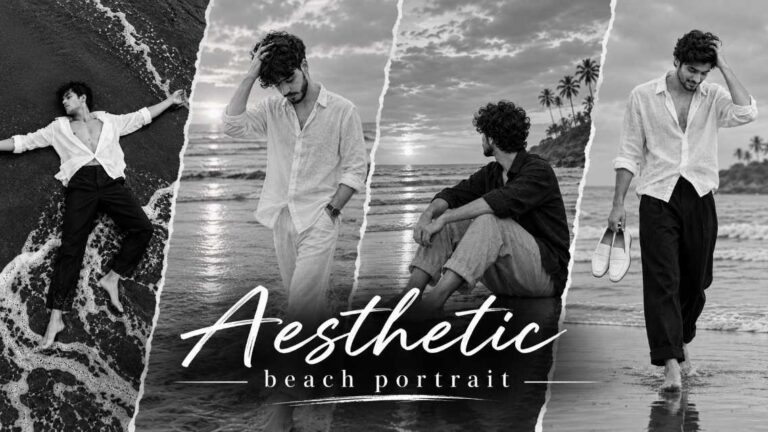
Introduction : Give Your Photos a Real Movie Feel
Have you seen those photos on Instagram that look like a frame from a big film? The colours are rich, the greens look deep, the light looks warm and golden, and the skin looks natural. Many people think such photos need an expensive camera or hard editing apps. Today, you do not need either. A simple Professional Cinematic look prompt can do this work for you in a few seconds.
On RonyTica, we love sharing viral photo prompts that are easy for everyone. This Professional Cinematic look prompt is a colour grading prompt. It is inspired by wedding photography, where the teal and warm golden look is very popular. It adds soft teal shadows, deep green tones and warm golden highlights to your photo. The best part is that your face, clothes, pose and background stay exactly the same. Only the colour and light get better.
This is a perfect ChatGPT photo prompt for boys and girls who already have a nice photo and just want a premium, DSLR-like finish. It also works as a Gemini photo prompt, so you can use the tool you like. In this article, RonyTica will explain how to use it, which settings to choose, what mistakes to avoid and why this cinematic look prompt is going viral.
Which AI Tools Work Best With This Cinematic Look Prompt
The best tool for this Professional Cinematic look prompt is ChatGPT. It understands long instructions well and follows them carefully. When you upload your photo and paste the prompt, ChatGPT gives a clean, balanced colour result. That is why we call it the best ChatGPT photo prompt for a cinematic photo editing style.
Google Gemini is the second good choice. You can use this as a Gemini photo prompt too. Gemini also understands colour words like teal shadows and warm highlights, so the result looks rich and professional there as well. If one tool gives you a result you do not like, try the other tool with the same photo.
This cinematic photo editing prompt works for boys, girls and any kind of photo. A portrait, a casual photo, a photo taken outside or a sunset photo, all of them can look better with it. A boys photo prompt and a girls photo prompt can both use the same steps.
How To Use This Professional Cinematic Look Prompt
Using this prompt is very simple. Just follow these steps on your phone or computer.
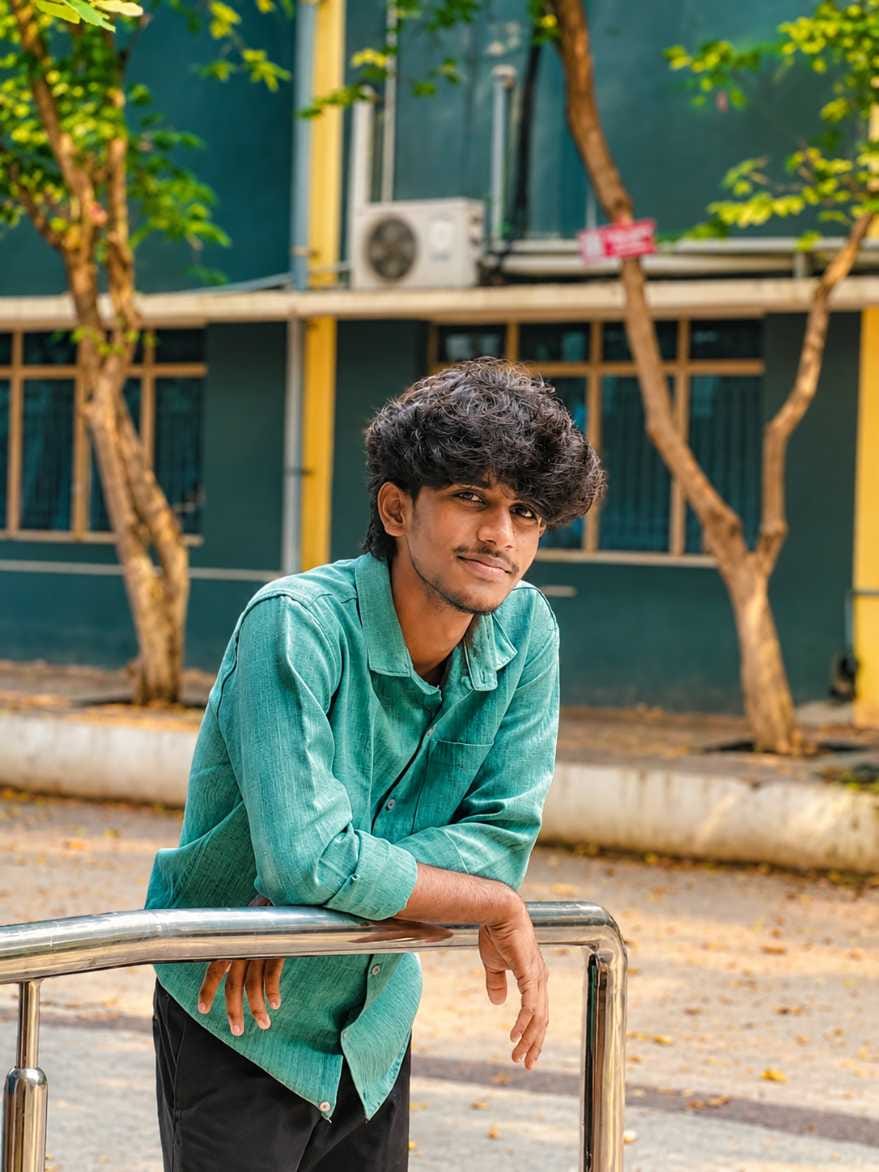
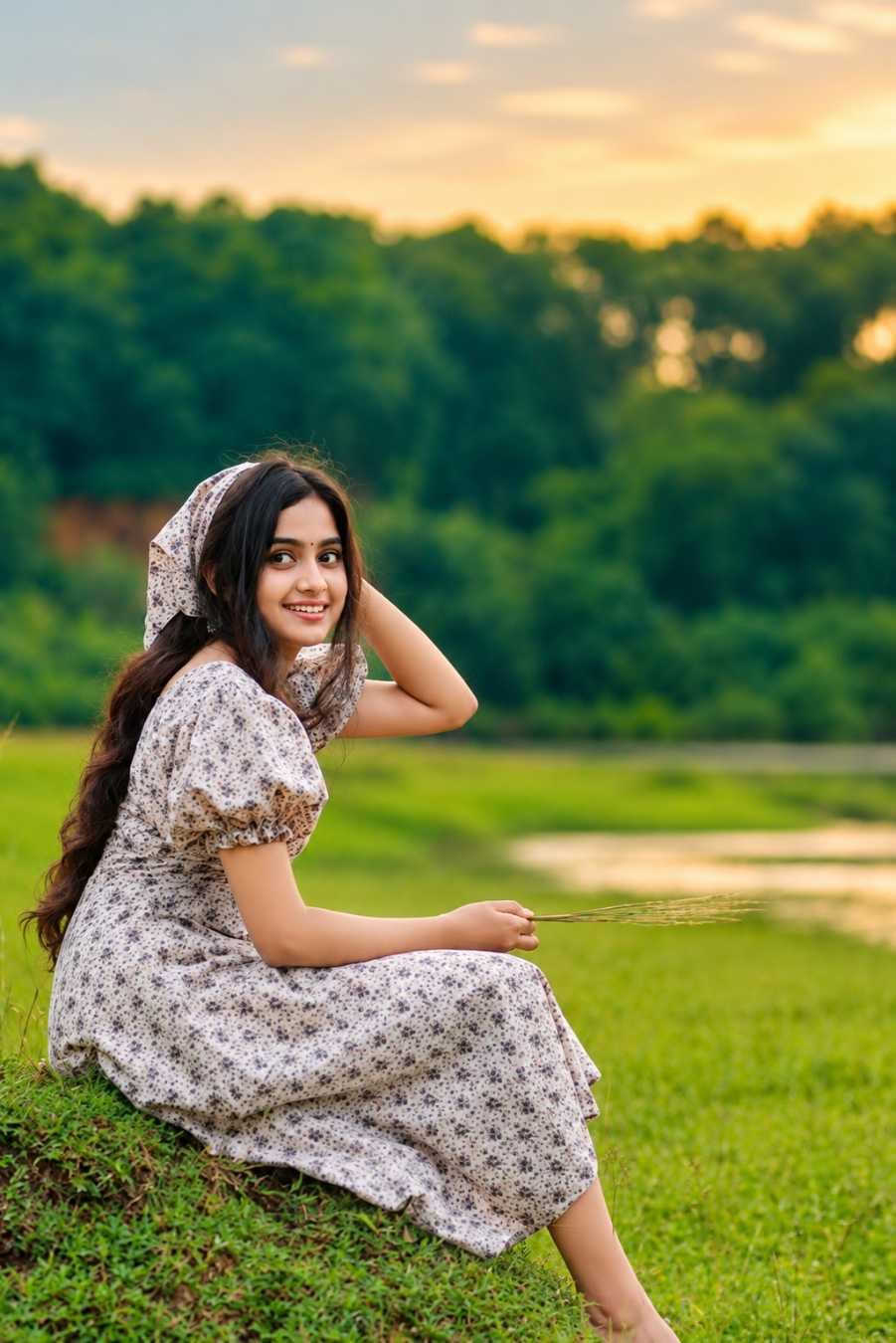
- Open the ChatGPT app or website. You can also open Google Gemini if you want to use it as a Gemini photo editing prompt.
- Tap the plus or attach button and upload the photo you want to improve. Choose a clear and bright photo for the best result.
- Go to the prompt box on this RonyTica page and copy the full Professional Cinematic look prompt.
- Paste the prompt in the chat box, right below your uploaded photo.
- Press send and wait for a few seconds while the AI works on your photo.
- Check the result. Look at the colours, the face and the background. If you want a little less or a little more colour, ask the AI for a small change in the same chat.
- Download your new photo and share it. Visit RonyTica again for more viral ChatGPT photo prompts and Gemini photo prompts like this one.
Simple Tips to Follow Before You Use the Prompt
A good result starts with a good photo. Always upload a photo that is sharp and not blurry. If your photo is too dark, the AI may not find enough light to build a cinematic look. A photo taken in daylight, in the evening or near a window works very well for this kind of prompt.
Outdoor photos with trees, grass, walls or sky give the best colour grading. Greens turn deep and rich, and the golden light looks beautiful on the skin. That is why photos near parks, roads, lakes and gardens look amazing with this Professional Cinematic look prompt.
Use the original photo and not a photo that was already edited many times. Heavy filters can confuse the AI and the final colours may look strange. Also, upload one photo at a time. This way, the AI can focus on one image and give a cleaner result.
Last, keep the prompt exactly as given in the prompt box. This prompt asks the AI to keep your face and everything else safe, so do not remove those lines. Those lines are the secret behind a natural result.
Best Settings for a Perfect Cinematic Photo
Use the table below to get the best result from this ChatGPT photo prompt and Gemini photo prompt.
| Setting | Best Choice |
|---|---|
| Best AI Tool | ChatGPT (first choice), Gemini (second choice) |
| Photo Type | Clear portrait or full photo with good light |
| Photo Quality | Sharp, bright and not too dark |
| Colour Style | Teal shadows with warm golden highlights |
| Skin Tone | Natural and realistic, no heavy smoothing |
| Background | Same as the original, no change |
| Finish | Rich DSLR-like professional look |
| Best Use | Instagram posts, profile pictures, reels covers and stories |
Common Mistakes You Should Avoid
The first mistake is uploading a very small or blurry photo. The AI cannot create sharp details from a low quality image, so the result may look soft. Always pick the best quality photo you have.
The second mistake is changing the prompt too much. Many people add extra words like “make me fair” or “change my dress”. This breaks the main idea of the cinematic look prompt. Keep it simple and let the prompt do its job.
The third mistake is asking for too much colour again and again. If you keep saying “more colour, more colour”, the photo will look over-saturated and fake. A professional cinematic look is always soft and balanced.
The fourth mistake is using a photo with very harsh light or a strong filter already applied. In that case, the AI struggles to fix the colours. Start with a normal photo for the best output.
Why You Will Love This Viral Cinematic Look Prompt
First, it saves a lot of time. You do not need Lightroom, Photoshop or any paid app. One prompt and one photo are enough. This is why this Professional Cinematic look prompt is so loved by people who want quick and premium results.
Second, your photo stays real. The face, the clothes, the pose and the background do not change. You still look like yourself, only with better colours and light. This makes it a safe and trusted ChatGPT photo prompt for daily use.
Third, it gives a rich and professional finish. The teal and warm golden tones make skin look healthy and the greens look deep and fresh. It gives your picture the same feel as a wedding photographer’s best shots.
Fourth, it is great for boys and girls. You can use it as a boys photo prompt for stylish street photos, or as a girls photo prompt for soft and beautiful portraits. It also works as a viral AI photo editing prompt for Instagram, WhatsApp status and Facebook.
Finally, it works with both ChatGPT and Gemini. So if you search for a cinematic photo editing prompt, a teal and orange colour grading prompt or an AI colour grading prompt, this one prompt can give you a similar premium result.
Conclusion : Try the Cinematic Look Today
A Professional Cinematic look prompt is the easiest way to make your normal photo look rich, warm and premium. With just one photo and one prompt, you can get a DSLR-like finish without any editing app. It keeps your face and background safe, and only improves the colours and light.
Whether you use it as a ChatGPT photo prompt or a Gemini photo prompt, the steps are simple and the result looks professional. It is a great viral AI photo editing prompt for both boys and girls. Copy the prompt from the prompt box, upload your best photo and try it today.
Thank you for reading on RonyTica. Visit us again for more viral AI photo prompts, ChatGPT photo prompts and Gemini photo prompts. If this article helped you, share it with your friends so they can also get a cinematic look.