
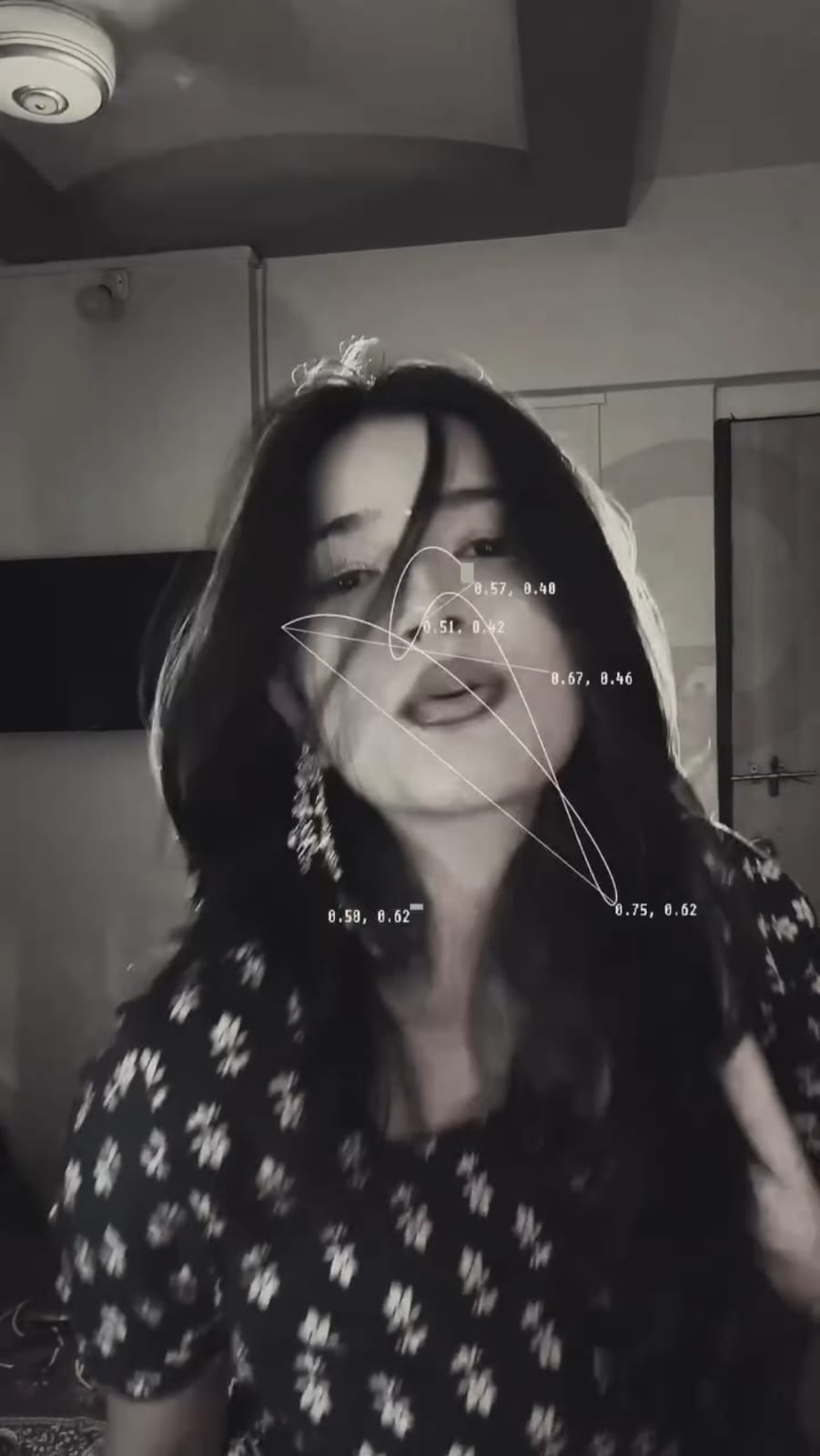
Have you seen those Instagram Reels where a video starts in black and white, shows thin lines around the face, and then suddenly turns into a warm, colorful slow motion clip? That is the CapCut Fashion Video Template, and it is going viral right now.
The best part is that you do not need any editing skills. You just open the template, add your own video, and CapCut does all the work for you. In a few seconds, you get a stylish fashion-type video that looks like it was edited by a professional. In this article, I will explain what this template does, how to use it step by step, and the best settings to get a clean result.
What Is the CapCut Fashion Video Template?
This is a ready-made CapCut template made for people who love a cinematic, fashion-style look. It changes your normal video into a smooth and dreamy edit with two different moods in one video.
In the first part, your video turns black and white and moves in slow motion. Thin white lines appear around the face, like a modern face-tracking effect. These lines follow your face as you move.
After a few seconds, the video changes into full color. The colors look warm and glowing, with a soft light on the face and a gentle slow motion feel. A trending background song plays all through the video, so you do not have to add music yourself.
How to Use This Template
Follow these simple steps to make your own video :
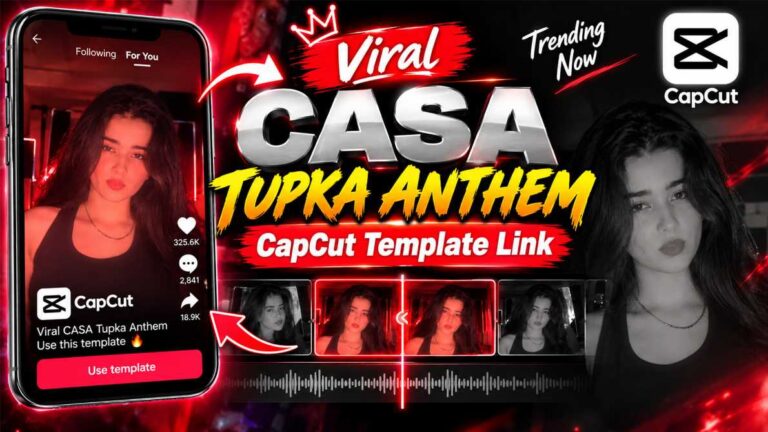
- Click the template link given on this page. It will open directly inside the CapCut app.
- Tap the “Use template” button on the template preview screen.
- Your gallery will open. Select one video (or a photo) from your phone. A video works best for this trend.
- Tap “Preview” and wait for a few seconds while CapCut adds the effects.
- Watch the preview once. You will see the black and white slow motion part first, then the color change.
- Tap “Export” at the top right corner.
- Choose your video quality and save it to your gallery. You can also share it directly to Instagram, YouTube Shorts, or Facebook.
Which App Do You Need?
You need the CapCut app to use this template. It is free and works on both Android and iPhone.
Make sure you have the latest version of CapCut installed. Older versions may not open the template properly, or some effects may not load. If the template does not open, update the app from the Play Store or App Store and try again.
Tips Before Using This Template
The quality of your final video depends a lot on the video you choose. Pick a clip where your face is clearly visible and well lit. The face-line effect needs to detect your face, so a clear front-facing video gives the best result.
Choose a video where you are moving naturally, like smiling, turning your head, or touching your hair. Movement looks great in slow motion, and it makes the black and white to color change feel more powerful. Try to avoid very shaky videos, because the slow motion can make the shaking look worse. Good lighting also matters. A video shot near a window or under a warm light will look amazing in the color part of the template. If your clip is too dark, the glow effect will not show properly.
Best Settings for This Template
| Setting | Recommended Option |
|---|---|
| Media Type | Video (photo also works, but video looks better) |
| Video Length | 10 to 15 seconds |
| Orientation | Vertical (9:16) |
| Face Visibility | Clear, front-facing, not covered |
| Lighting | Bright or warm natural light |
| Export Resolution | 1080p |
| Frame Rate | 30 fps |
| Best For | Instagram Reels, YouTube Shorts, Facebook Reels |
Common Mistakes to Avoid
The most common mistake is choosing a video where the face is too small or far from the camera. In that case, the line effect around the face will not look sharp. Always pick a clip where your face takes a good part of the screen. Another mistake is using a blurry or low-quality video. Since the template adds slow motion and color grading, a low-quality clip will look even softer after export. Always use the original video from your gallery, not a downloaded or forwarded copy from WhatsApp. Many users also export in low quality just to save time. This makes the final video look dull on social media. Take a few extra seconds and export in the highest quality available.
Why You Will Love This Template
This template gives you a cinematic look in just a few taps. The black and white opening grabs attention instantly, and the sudden change to warm color feels satisfying to watch. That is exactly why people keep watching these videos till the end, and that helps your reel get more views.
It is also very beginner-friendly. There are no layers, no keyframes, and no manual editing. Everything is already set, including the effects, the slow motion, and the background song. You can use it again and again with different videos, and every video will look different. It works for casual clips, fashion looks, dance moments, or simple selfie videos.
Who Can Use This Template?
Anyone who wants a stylish edit can use it. It is perfect for content creators, Instagram users, fashion lovers, and anyone who wants their normal video to look more premium. You can use it for outfit videos, festival looks, birthday clips, travel moments, or just a simple everyday video. If you want your profile to look more aesthetic, this template is a great choice.
Conclusion
The CapCut Fashion Video Template is one of the easiest ways to make a cinematic reel right now. The black and white slow motion start, the face-line effect, and the warm color change together create a smooth and stylish result. Just pick a clear, well-lit video, follow the simple steps above, and export in high quality. In a few minutes, you will have a video that is ready to post and easy to share. Try this template today and let your friends and followers see the difference. For more trending CapCut, VN, and InShot templates, keep visiting RonyTica.
Frequently Asked Questions
No. The template and the CapCut app are free to use.
Yes, you can upload a photo. But video gives a much better result because the slow motion and face-line effect work best with movement.
Yes. You can choose any video from your gallery. Just make sure your face is clear for the best effect.
Yes. The trending song is already added in the template. You do not need to add any music.
Check your internet connection and update CapCut to the latest version. If it still does not open, try opening the link again from your browser.
CapCut may add a small end-tag or watermark depending on your app settings. You can remove it from the export screen before saving.
Yes. The output is in vertical format, so it fits Reels, Shorts, and Facebook Reels perfectly.

Capture kyon nahin chal raha hai
Fuudeuxuh