
Diwali is close, and many people want a festival-style photo before the day even comes. But a real photoshoot is hard. Some people are busy with work or home duties. Some don’t have a good camera or a photographer. Others don’t want the trouble of outfit, makeup, travel and crowds.
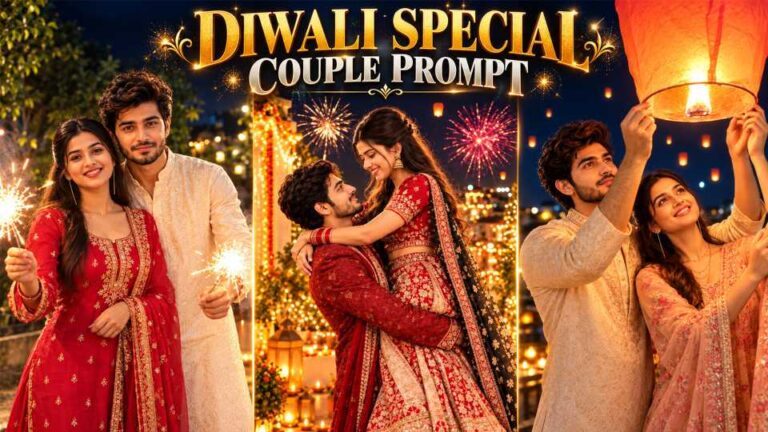
So AI can help. You upload one clear photo of yourself, and the tool builds the look at home. The images below have warm golden light, glowing lanterns, fairy lights, soft bokeh and rich festive clothes like a red saree or a white shirt. Pick one of the prompts just below and try this Diwali AI Photo Editing Prompt with ChatGPT or Gemini.
IMAGE 1: Young man with curly hair and short beard, holding a big glowing orange lantern above his head, white shirt, dark night sky with golden blurry lights
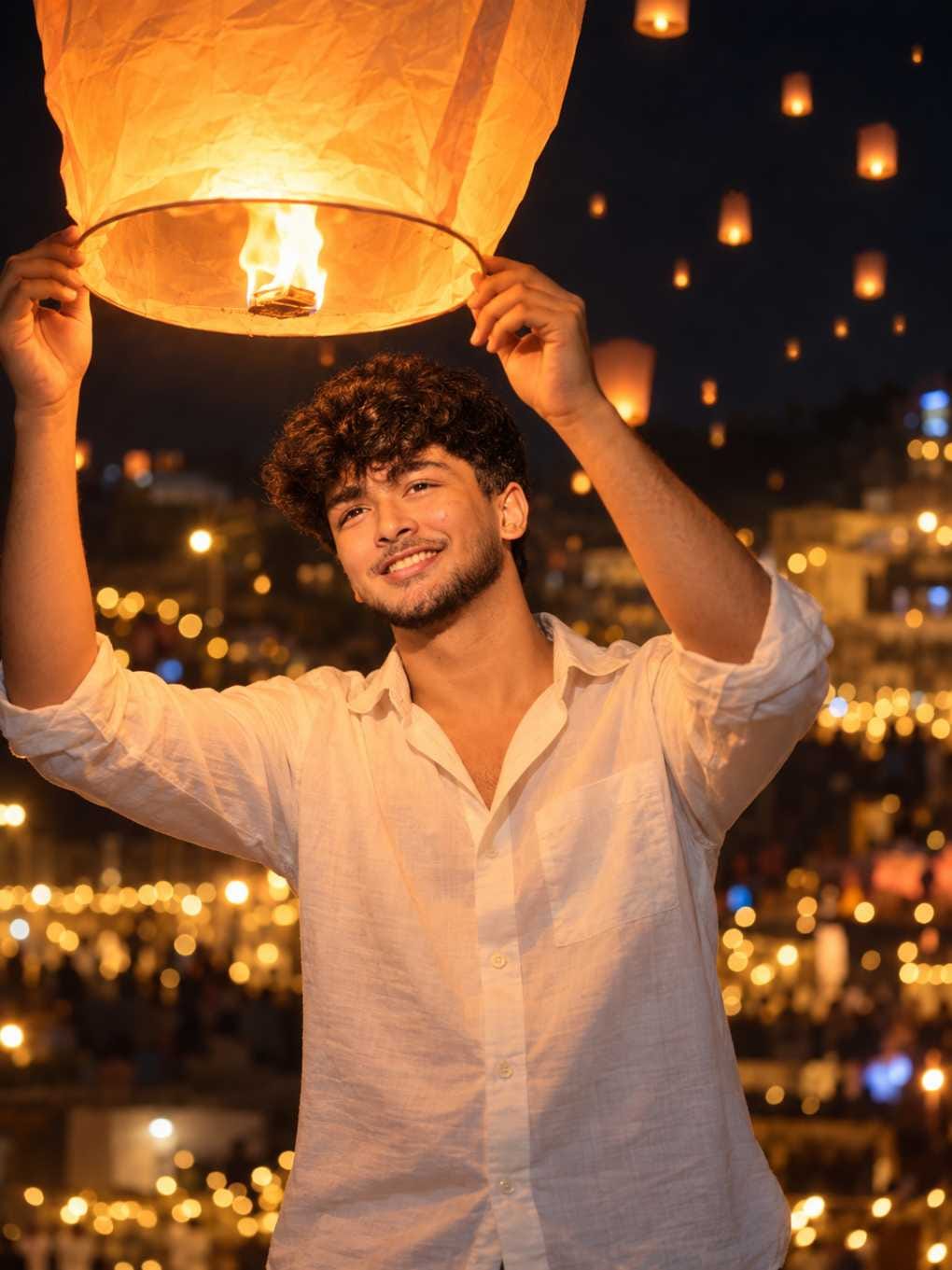
IMAGE 2: Smiling young woman in an olive-beige sheer saree with black sequin blouse, holding a sparkler on a warm balcony with fairy lights and golden glow
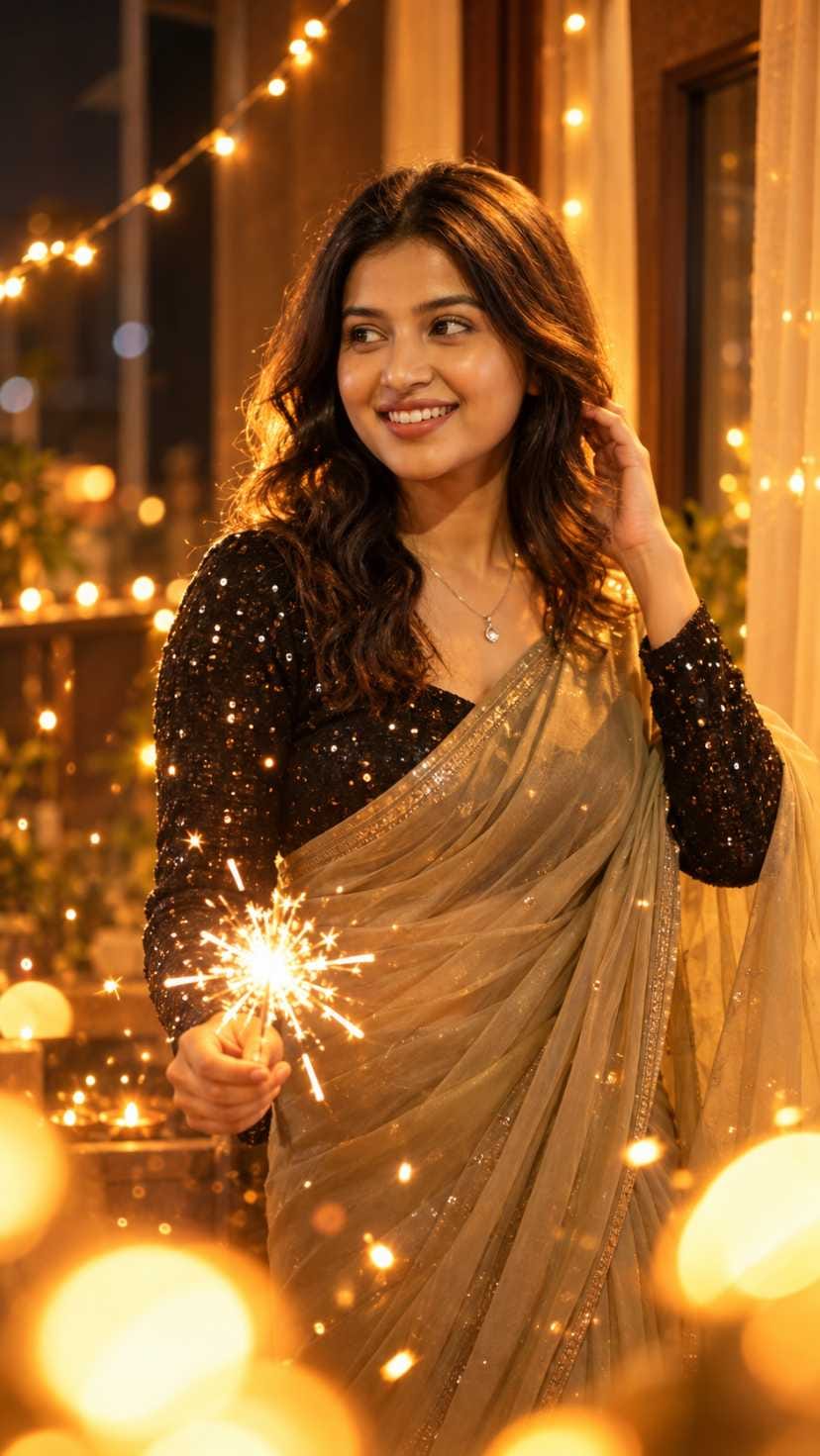
IMAGE 3: Young woman in a deep red saree with golden border, gold jhumkas, holding a string of fairy lights against a glowing golden background
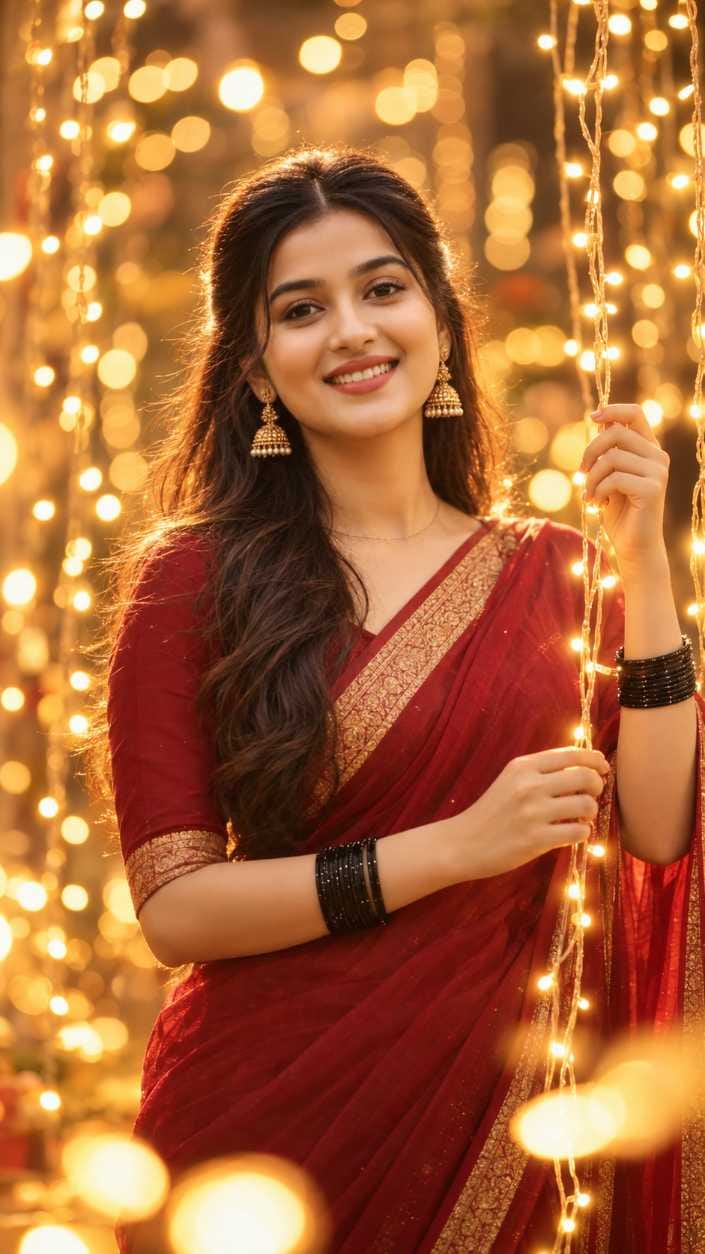
The first one is a night lantern look for boys or girls. The second is a sparkler on a balcony, softer and dreamy. The third is the most traditional, with red and gold and lots of light behind.
Many people post their Diwali pictures before the day itself. They put them on Instagram Stories, in feed posts, and some join a few photos into a reel. If you wait for the festival day, your photo may look late. So make your images early and keep them ready.
How to Use It
Pick a clear photo of yourself. A simple selfie or normal photo is fine. Open ChatGPT or Gemini, upload your photo, then copy one prompt from the boxes above and paste it along with the photo. Check the face, hands and clothes. If something looks off, run it again. When you get a good one, save it in full size.
The prompt tells the AI what to wear, how to pose, where you stand and how the light feels. It sets the colour tone too, like amber-brown or red and gold, and the frame shape. Prompt 2 even tries to stop a changed face and extra fingers. That’s why the result looks like a festival photo and not just your old photo with a filter.
Which Photo to Upload, and What to Change
Use good light and show your face clearly. Choose a plain background, skip heavy filters, and don’t use a tiny or blurry picture. Hands should be visible if you can manage it, since the pose in these prompts uses hands.
Small changes give very different results:
| Change this | What usually happens |
|---|---|
| Outfit colour (cream kurta, green saree) | The whole mood shifts, even with the same light |
| Light colour (blue or white instead of gold) | Feels cooler and calmer, less festive |
| Background (rooftop, lake, courtyard) | Changes the story of the photo |
| Held item (diya, sparkler, phulajhari) | Changes the pose and the glow on your face |
| Gaze (at camera instead of up) | Feels more direct and personal |
| Glow and bokeh amount | From soft and subtle to heavy and dreamy |
Build a 3-Photo Reel
This is my favourite part, because three photos in a row can feel like a small story. You don’t need many. Make three images from the prompts above, or from other prompts on the site, and put them in a good order.
Start with the brightest, clearest face. The lantern look or the red saree look works well here, since it has the strongest glow and must stop the thumb. In the middle, use a different mood or outfit. The sparkler balcony photo fits nicely because it is softer and gives a change. End with something calm, a look that feels warm and finished, maybe a side glance or a smile.
Keep each photo on screen for a short time. Long clips make the reel feel slow. Use the same frame for all three, 9:16 and 1080×1920, so there are no odd borders. Prompts 2 and 3 already come in tall 9:16. Prompt 1 is 3:4, so you may need to crop it a bit.
To turn the photos into a reel, use Google Flow or any video editor app :
1) Add the three images in your chosen order.
2) Add gentle movement, like a slow zoom, or let the tool animate the lights and sparkler.
3) Add festive music and short text, but keep the text away from the face.
Sizes and Where to Post
For a single feed post on Instagram or Facebook, use 4:5 portrait, 1080×1350. For Stories and reels, use 9:16, 1080×1920. These images are tall portraits, so a single post is fine. A carousel works if you want to share all three looks together. A reel is best when you want people to watch the story in order.
Captions and Hashtags
Write your own words. Something simple like “Diyas, lights and a happy heart. Diwali mood is on.” works fine. For a funny one, try “No studio, no photographer, just my phone and some AI.” Or go warm: “Wishing you a bright and happy Diwali, a little early.”
Add words people may search for: Diwali look, Diwali photo idea, saree look, AI photo prompt. You can mention ChatGPT or Gemini too.
Hashtags to try : #DiwaliAIPhoto #DiwaliPhotoIdea #DiwaliLook2026 #DiyaAndLights #SareeDiwaliLook #LanternPortrait #SparklerPhoto #FestiveAIEdit #AIPhotoPrompt #GeminiPrompt
Posting Time and Common Problems
Post when you are sure your friends are online, and try not to wait until the last minute. Don’t trust any “perfect time” claim you read without proof.
If the face doesn’t match your photo, upload a clearer, front-facing picture and generate again. Bent hands or odd fingers? Run it again, or change the pose, like holding a diya in one hand. Too much orange glow hiding the details? Ask for softer glow and less bokeh. And if the hands look stiff in the lights, try a side glance or a twirl instead.
Before you post, check that the face looks like you, the hands look normal, the size is right, text isn’t covering your face, and the caption is yours.
Frequently Asked Questions (FAQ)
Yes. Both work with these prompts. Paste the prompt with your photo.
Yes, but change the outfit. Try a kurta or shirt instead of a saree.
Generate again, or upload a clearer photo.
Pick the one with the clearest face and the brightest glow.
Deewali editing photo