
Have you seen those dreamy reels where a girl in a saree is running toward the camera in a green field, while soft music plays in the background? This trend is everywhere on Instagram and YouTube right now, and the best part is that you do not need any shoot with an actress to make it.
You only need one normal photo of yourself, a bit of AI magic, and a video editing app. With the help of AI tools, you can add a realistic girl into your own picture and then turn that picture into a smooth, cinematic video. No camera crew, no location scouting, no extra person needed for the shoot.
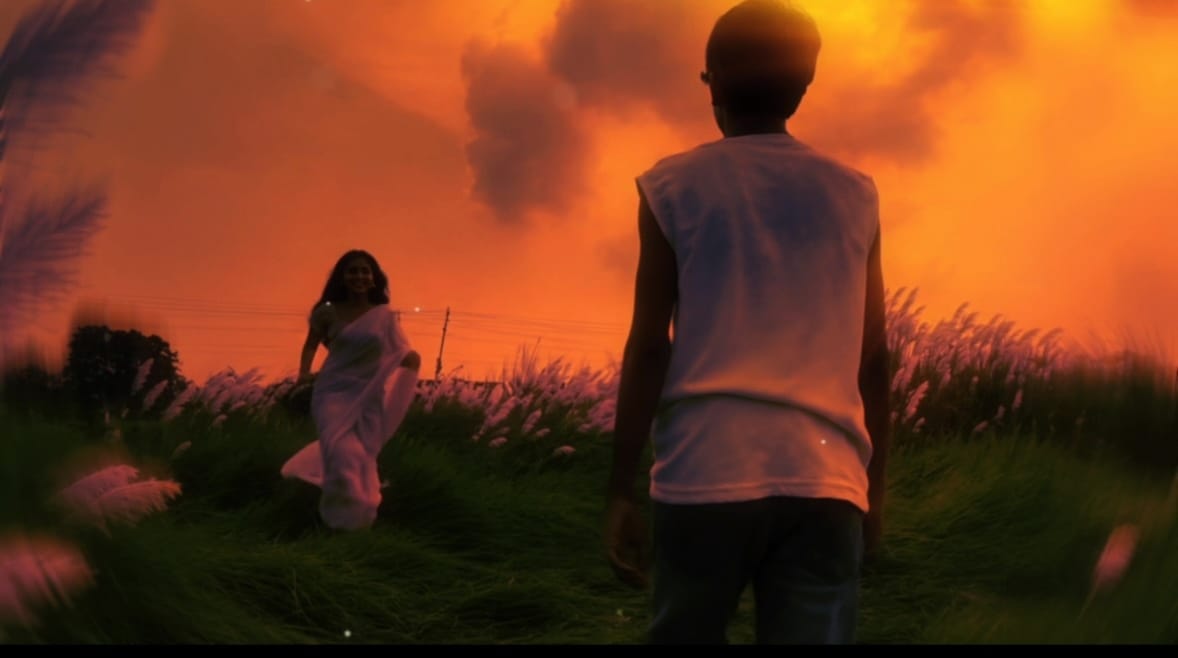
In this guide, RonyTica will show you the exact step by step process to create this AI Girl Romantic video trend. We will cover which AI tools to use, what things you need before starting, the correct order of prompts, and small tips that will make your final reel look real and professional instead of fake or robotic.
Which AI Tool Can Make This Video
This trend needs two different AI tools working together, one after another.
Step 1 tool – ChatGPT (Image Generation)
ChatGPT is used first to add the girl into your photo. You upload your own photo, paste a prompt, and ChatGPT edits the image for you while keeping your face, body, and background exactly the same.
Step 2 tool – Google Flow (Image to Video)
Once your new photo is ready, Google Flow is used to turn that still photo into a moving video. It takes the image as the first frame and creates realistic motion, like the girl running and you walking.
You can also try Gemini as an alternate option if ChatGPT is not giving proper results for the image step, since both tools work in a similar way for photo editing.
Ai Photo Prompt
Ai Video Prompt
What You Need Before Starting
Before you begin, keep these things ready:
- One clear photo of yourself, ideally from behind or side angle, standing in an open outdoor location like a field, garden, or path
- Access to ChatGPT (free or plus version)
- Access to Google Flow for the video generation part
- A video editing app like CapCut or VN
- A short video clip of yourself shot separately, which will be added before the AI generated clip
- A background song that matches a romantic, emotional mood
Step By Step Process To Create This Trend
Step 1: Prepare Your Base Photo
Pick a photo where you are standing with your back to the camera or at an angle, in an open natural location. The photo should be clear, well lit, and have some open space in front of you where the second person can be added while running.
Step 2: Add The Girl Using ChatGPT
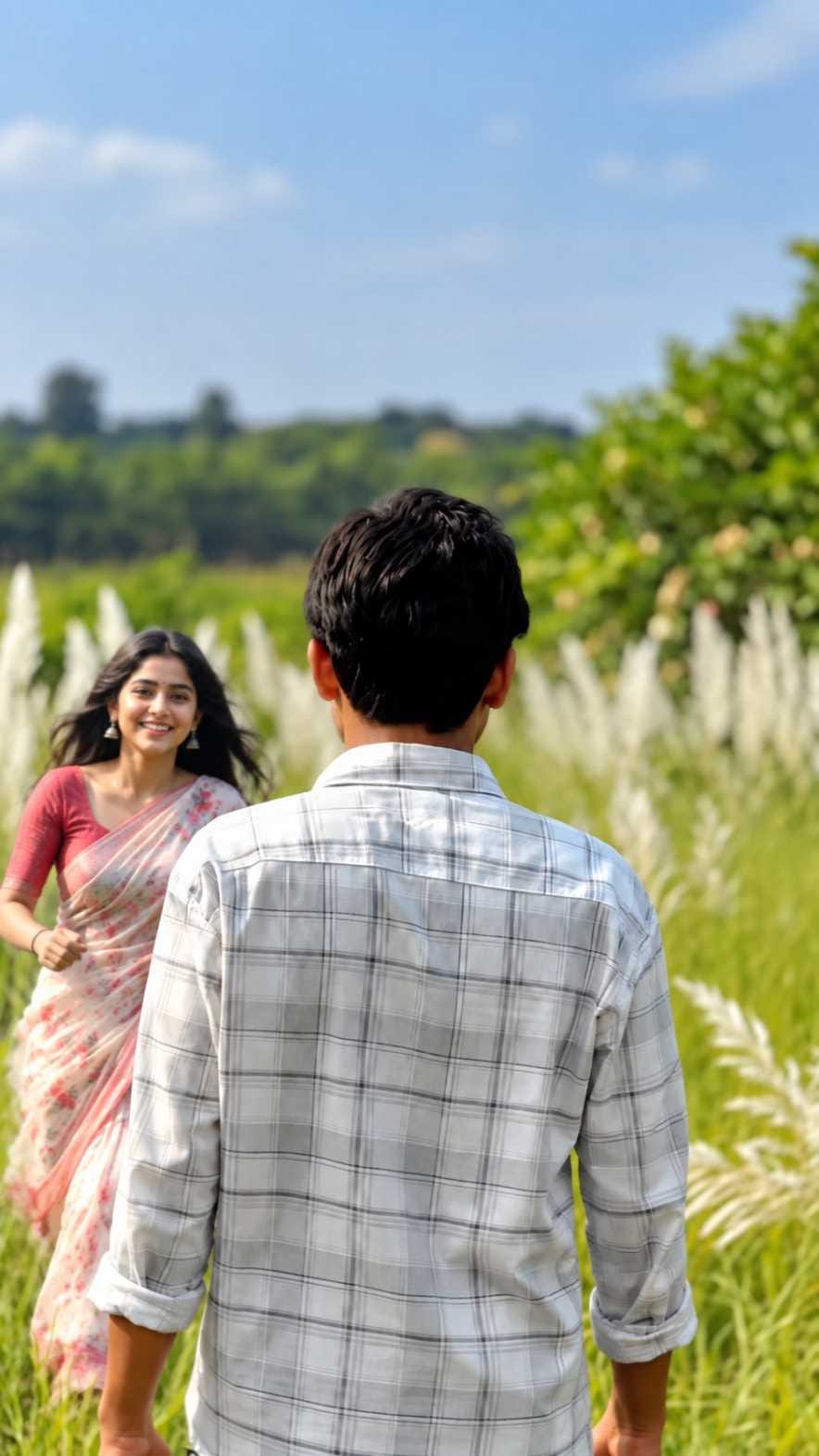
Upload your chosen photo into ChatGPT and use a prompt that asks the AI to add a realistic Indian woman in a simple saree, running toward you from the front, without changing anything else in your original photo. ChatGPT will process this and give you a new image with both of you in the same frame, matching the lighting and background.
Check the output carefully. Your face, clothes, and the background should look exactly the same as your original photo, with only the woman added naturally into the scene.
Step 3: Turn The Photo Into A Video Using Google Flow
Now take this new photo and upload it into Google Flow. Use a video prompt that tells the AI to keep the image as the first frame, and create a slow motion cinematic video where the woman runs toward you while you walk forward on the same path, with smooth and natural movement.
Google Flow will generate a short video clip based on this photo and prompt, with realistic motion, natural fabric movement, and steady camera work.
Step 4: Edit The Final Reel
Open CapCut or VN and follow this order:
- First add your own normal video clip, shot separately by you
- After that, add the AI generated video clip from Google Flow
- Add a soft romantic background song
- Trim the clips so the transition feels smooth
- Export in high quality for Instagram or YouTube Shorts
Tips Before You Start This Trend
- Choose a photo with good natural light, since AI tools give better results on bright and clear images
- Avoid photos where your face is turned fully toward the camera, as back angle or side angle photos blend better with the running motion
- Keep the background simple, like a field, garden path, or open ground, so the AI does not get confused while adding the new person
- Always generate two to three versions of the photo and video, then pick the one that looks most natural
- Match your own real video’s color tone with the AI generated clip so both parts feel connected
Best Settings To Use For This Trend
| Setting | Recommended Option |
|---|---|
| Base Photo Angle | Back view or side angle |
| Photo Lighting | Natural daylight, golden hour preferred |
| AI Tool for Photo | ChatGPT (Gemini as alternate) |
| AI Tool for Video | Google Flow |
| Video Style | Slow motion, cinematic |
| Editing App | CapCut or VN |
| Music Style | Soft romantic, emotional background song |
| Export Quality | 1080p or higher |
Common Mistakes To Avoid
- Uploading a blurry or dark photo, which gives poor quality AI results
- Using a photo where the background is too crowded or busy
- Skipping your own real video clip and posting only the AI part, which looks less personal
- Choosing a loud or mismatched song that does not fit the romantic mood
- Not checking the AI output properly before generating the video, which can carry forward mistakes
Why This Trend Is Winning Hearts Online
This trend is so popular because it lets anyone create a romantic, movie style moment using just their own photo. You do not need to convince a friend to act in your reel, hire anyone, or plan a big outdoor shoot. With a bit of AI help, an ordinary photo turns into a beautiful, cinematic story in just a few minutes, and that too completely free of cost.
Conclusion
The AI Girl Romantic video trend is a simple but powerful way to create emotional, cinematic reels using nothing more than your own photo and a couple of AI tools. By following the correct order, from ChatGPT for the photo, to Google Flow for the video, and finally CapCut or VN for editing, you can create a reel that feels personal and professional at the same time. Try it out with your own photo, and do not forget to check out more such AI video prompt ideas on RonyTica.
Frequently Asked Questions
Do I need to pay for ChatGPT or Google Flow to try this trend?
Both tools offer free access, though some advanced features may need a paid plan depending on your usage and region.
Can I use a photo of myself alone without a friend appearing in it?
Yes, this whole trend works by adding the second person using AI, so you only need your own solo photo to start.
Will the AI generated video look completely real?
With a clear photo and good lighting, Google Flow can create very realistic motion, though small imperfections may appear, so always review the result before final editing.
Can I use this same idea with a different background like a beach or street?
Yes, you can use any open outdoor location as your base photo, and adjust the prompt details to match that setting.
Which app should I use to add music and finalize the reel?
CapCut and VN are both good choices, and you can pick whichever one you are more comfortable using.

good
Drdfttf