

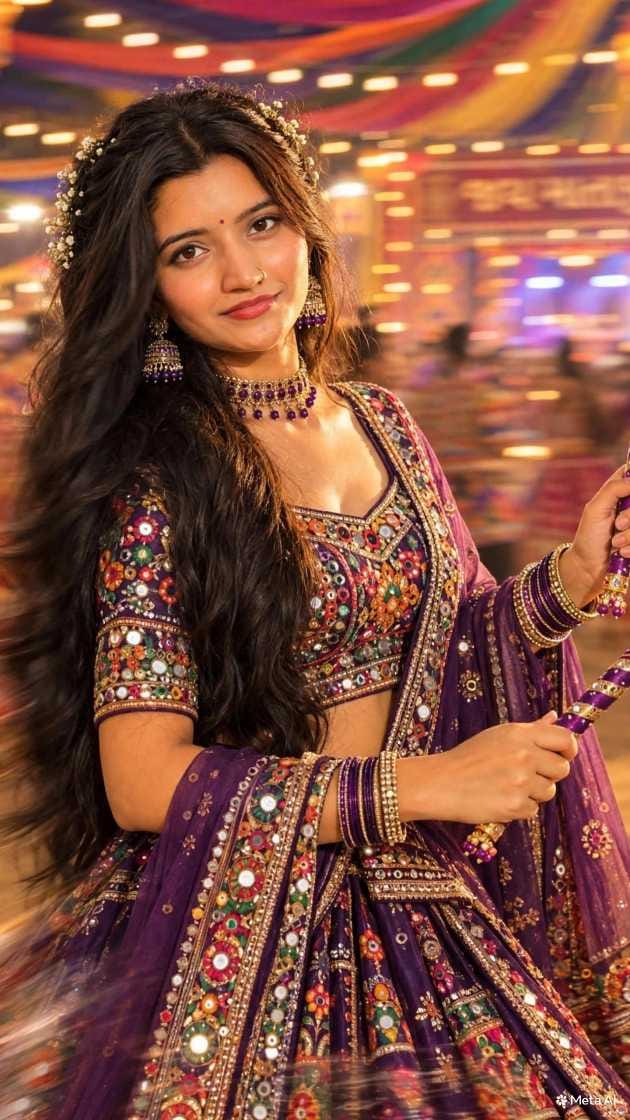
Your plain photo can look like it was shot in the middle of a dandiya night. The background turns into streaks of light, and the face stays yours.
This one asks for a strong blur in the background, like the photo was taken while moving. It also adds soft warm light on one side of the face and a little motion in the hair.
How to use it
This works only inside Instagram, and only in Story, not in the normal Post option. I want to say that clearly, because many people look for it in the wrong place.
Open Instagram and go to the Story option. Select a simple photo of yourself. Tap FX, then go to the Prompt option. Copy the prompt from the box above and paste it there. Wait a little. Your photo changes to this style, and the background changes too.
Right now this kind of photo is all over Instagram Stories. I see many people turning their normal photos into this style and putting them in their stories. Easy to see why. A bright, moving background makes people stop for a second.
Light colour and what to change
The light colour changes the feeling a lot. Warm gold feels happy and festive. Pink feels soft and sweet. Cool blue feels calm, a bit like a night out. Pick the mood first, then the colour.
Here’s what you can change in the prompt and what usually happens.
| Change this | What you usually get |
|---|---|
| Blur strength | Light streaks if small, heavy smearing if big |
| Light colour (golden, pink, cool blue) | A different mood in the whole photo |
| Side of the light (left, right, behind) | Shadow moves on the face, behind gives a glow |
| Hair blur | Hair stays sharp, or flows more |
| Setting (street, temple fair, indoor stage) | A new background and new colour of lights |
Festival ideas and a good source photo
This is where the look works best. Festival photos already have colour, so the blur only adds energy.
For Navratri, keep the warm golden light and a dandiya hall setting. Post the photo on the evening of the event, so it feels live. For Diwali, try a street full of lamps and string lights. For a temple fair, use the fair setting with pink or golden light. For a quiet family function, use less blur so it looks softer.
My favourite is the Navratri one with golden light. It suits the look best.
A good source photo makes a big difference. Use a photo with clear light on your face. Keep the face fully visible, with no sunglasses or hand in front. A plain background is best, because the prompt will change the background anyway. Don’t use a photo with a heavy filter already on it. A sharp, normal-size photo works better than a tiny or blurry one. Stand straight and look at the camera.
Some small things help:
- Put one photo in the Story first. Then add a second one in the same style a few minutes later.
- Don’t cover the face with stickers.
- Keep the text small and put it at the top or bottom. The middle belongs to your face.
Pick a song that matches the mood, like a festive beat for golden light. One short line of text is enough. The image should do the talking.
When things go wrong
When the blur is strong, the face can change a little or look too smooth. It may not match your real face. Ask for less blur, then try again. Hands and sticks can also look blurry or uneven. If that happens, try again or lower the blur. Keep the prompt the same and change one thing at a time. That way you know what caused the change.
Save the result to your phone before you post. If the Story is deleted or you want to reuse it, you’ll still have it.
Quick check before posting:
Posting on Instagram and Facebook
This feature is for Story, so the main format is a Story at 9:16, 1080×1920. After that, you can share the saved image to your feed as a single post at 4:5 portrait, 1080×1350. A reel at 9:16 also works if you want to add music over a few photos. A single post is simple. A carousel is good if you made a few colour versions.
Three caption ideas:
Cheerful: “Dandiya night mode on. Who’s coming?”
Calm: “Lights moving, me standing still.”
Short and funny: “My normal photo had no idea what was coming.”
Hashtags: #InstagramNewFilterPrompt #LongExposurePortrait #DandiyaNightLook #NavratriStoryIdea #LehengaPortrait #LightStreaks #FestiveStoryIdea #AIPhotoPrompt #FXPromptTrend #MotionBlurLook
Use words like long exposure, Instagram filter prompt, Navratri and Story idea in the caption so people can find it.
Frequently Asked Questions
No. The feature is only in the Story option, not in Post.
Choose your photo in Story, tap FX, then go to Prompt.
Yes. The background changes to the blurred festival style.
Yes. Try golden, pink or cool blue in the prompt.
Good
Chatgpt